
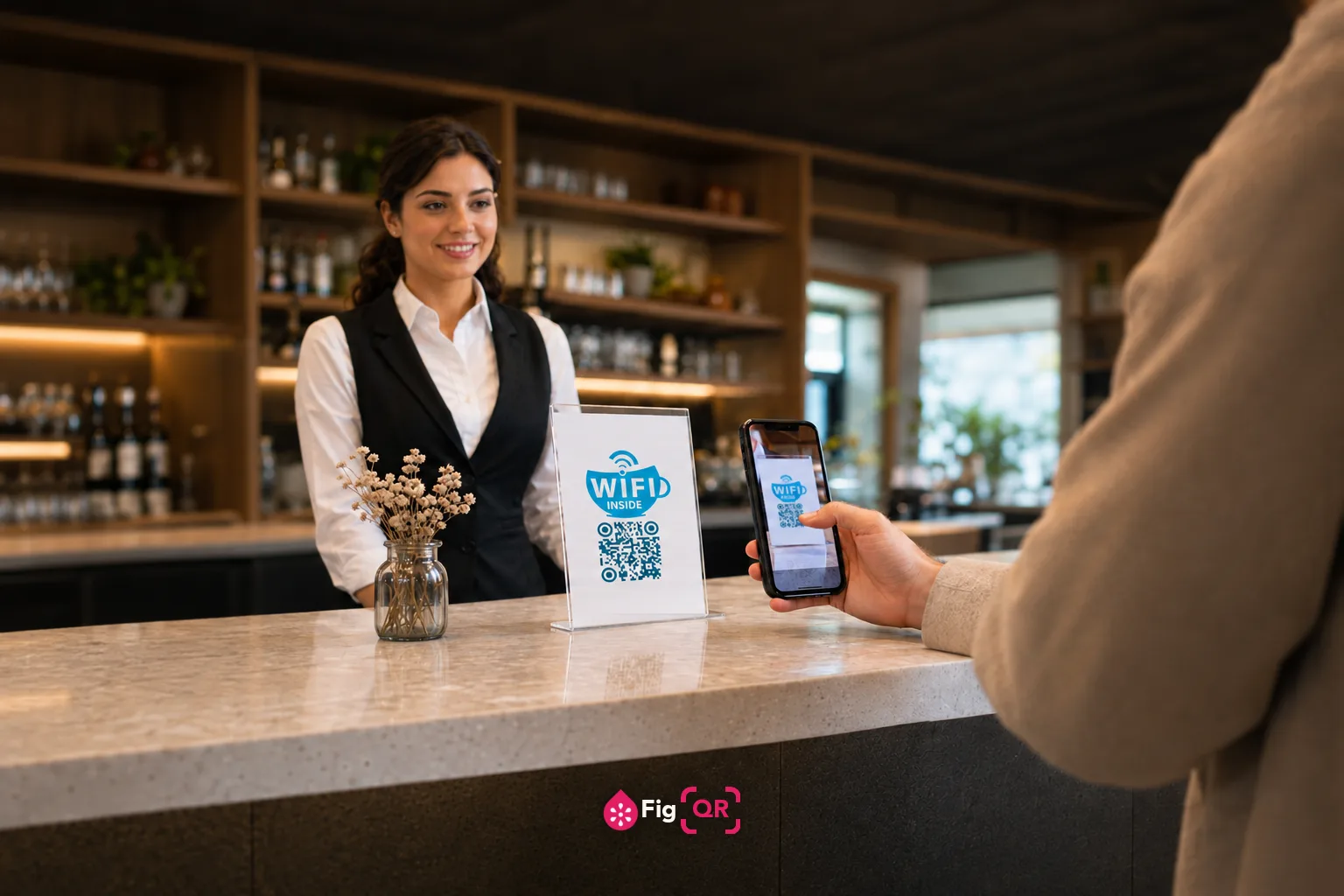
How a WiFi QR code actually works
There is no magic and no server involved. The code encodes a short line of text in a format every modern phone understands:
WIFI:T:WPA;S:MyNetwork;P:MyPassword;H:false;;Four values: T is the security type, S is the network name,P is the password, and H marks whether the network is hidden. When a camera reads it, the phone recognises the WIFI: prefix and offers to join.
Because everything lives inside the pattern, the code works with no internet connection, no app, and no service running anywhere. That is also why it cannot be edited later — there is nothing in the middle to update.
Which phones can scan it
- iPhone: iOS 11 and later, straight from the Camera app.
- Android: version 10 and later, from the native camera.
- Android 9 and earlier: the camera does not parse the format — Google Lens or any QR scanner app will.
That covers essentially every phone sold since 2019. If someone reports the code doing nothing, an older Android is the most likely explanation.
Choosing the right security type
The format only recognises three values, which is simpler than router settings suggest:
- WPA — use this for WPA, WPA2 and WPA3 alike. The code does not distinguish between them and the phone works out the rest.
- WEP — only for hardware old enough to be a security problem in itself.
- Open — no password. The password field disappears.
One edge case worth knowing: a few older devices struggle with routers configured forWPA3-only. If a code refuses to connect on one phone but works on others, switching the router to WPA2/WPA3 mixed mode usually fixes it.
Hidden networks
A hidden network does not broadcast its name, so a phone cannot find it from the SSID alone. Setting Hidden network to Yes adds H:true, which tells the device to go looking for it. Leave it on No for normal networks — setting it unnecessarily can slow connection down.
The security trade-off, stated plainly
Your password is inside the code in readable form. Anyone who scans it, or photographs it from across a room, has your WiFi password and keeps it. A QR code on a wall is a written-down password with extra steps.
That is fine in a home. In a café, office or rental it means:
- Put the code on a guest network, never your main one.
- Make sure guest isolation is on, so devices cannot see each other.
- Rotate the guest password periodically and reprint.
Printing it so it actually scans
A WiFi code carries more data than a short link, so it comes out denser. The generator shows the version and a suggested minimum size as you type — worth glancing at before printing.
The rule of thumb is that scanning distance is roughly ten times the code's width. A 3 cm code reads from about 30 cm, which suits a table tent or a card by the door. A code on a wall meant to be scanned from two metres needs to be around 20 cm across.
Download the SVG for anything printed — it stays sharp at any size. The PNG is for screens.
If it does not work
- Check the network name. SSIDs are case-sensitive, and a trailing space is invisible but fatal.
- Check the security type. An open network with WPA selected will fail silently.
- Print it larger. Dense codes fail at small sizes long before they look wrong to the eye.
- Try another phone. This separates an old-Android problem from a bad code.
- Check the band. Some older devices cannot see a 5 GHz-only network at all, regardless of the code.